Want to optimize your Google Ads campaigns and drive more visitors to your website? You've heard about sitelink extensions but aren't sure how to use them or what the benefits are? In this article, we'll explain what sitelink extensions are, how they work, how to set them up, and how to use them effectively in your Google Ads campaigns.
What Is a Sitelink Extension?
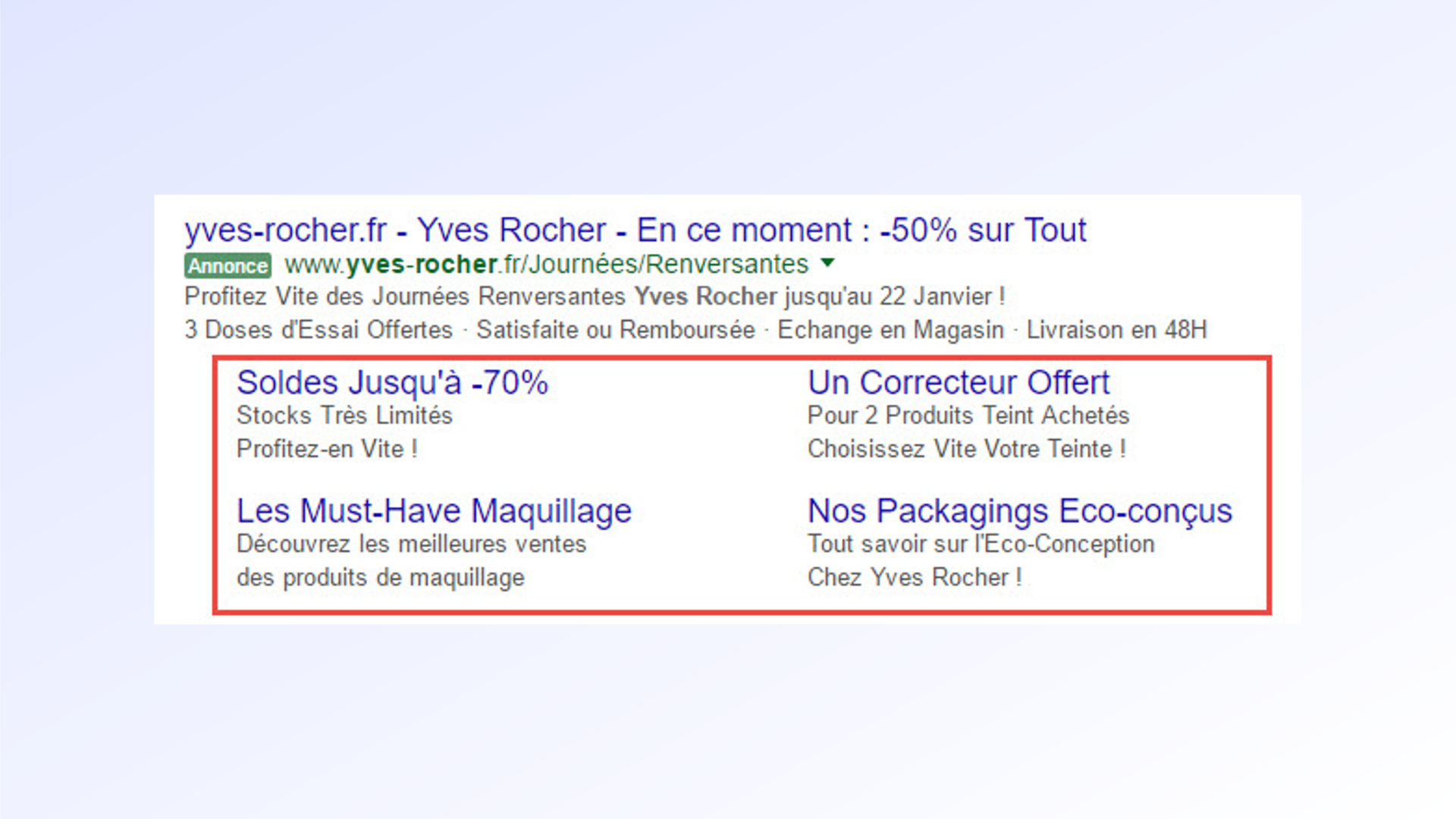
A sitelink extension is an ad asset that lets you add extra links beneath your main ad. These links direct users to specific pages on your website, such as a product, a service, a category, or a special offer. For example, if you sell shoes online, you can add sitelinks to your product categories (sneakers, heels, boots, etc.), to your contact page, or to your return policy. Sitelink extensions help you provide more relevant information to your prospects and encourage them to click on your ad.
Benefits of Sitelink Extensions
Sitelink extensions offer a number of significant advantages for your Google Ads strategy. Here are the main ones:
Better Google Ads Performance
Sitelink extensions let you improve your Google Ads by adding more content and relevance. By adding links to specific pages on your website, you increase the chances that users will find what they're looking for and have a satisfying experience. This improves the quality of your ads and your quality score, which can have a positive impact on your ranking and cost per click.
Greater Ad Visibility
Sitelink extensions also help you improve the visibility of your ad on search results pages. By adding extra links beneath your main ad, you increase the size and volume of your ad, making it more eye-catching and easier for users to notice. You can also add custom descriptive text for each sitelink, which lets you highlight the benefits and features of your products or services.
Higher Click-Through Rate
Sitelink extensions also help increase the click-through rate on your Google Ads. By giving users multiple options and multiple paths to your website, you increase the chances that they'll find an offer that suits them and click on your ad. According to Google, sitelink extensions can generate a click-through rate increase of up to 30%. Additionally, by directing users to specific, relevant pages, you reduce bounce rates and increase conversion rates.
Understanding How Sitelink Extensions Work
To use sitelink extensions effectively in your Google Ads campaigns, it's important to understand how they work and what their key characteristics are. Here are a few key points to keep in mind:
Choosing the Level for a Sitelink
Sitelink extensions can be defined at the account, campaign, or ad group level. This means you can choose to apply the same sitelinks to all your ads, to a specific ad group, or to a specific campaign. You can also combine multiple levels of sitelinks to create customized ads tailored to your target audience. For example, you can create account-level sitelinks to promote your brand, campaign-level sitelinks to promote a special offer, and ad group-level sitelinks to promote a specific product or service.
Understanding the Cost of Sitelink Extensions
Sitelink extensions are free to activate and add to your Google Ads campaigns. The cost per click is the same as for clicks on your main ad's headline or URL. This means you don't pay more if a user clicks on a sitelink rather than on your main ad. You only pay when someone clicks on your ad, not when your ad is shown.
Setting Up Sitelink Extensions
To set up sitelink extensions in your Google Ads campaigns, you just need to follow a few simple steps. Here's how:
Adding Sitelink Assets
To add sitelink assets to your Google Ads campaigns, sign in to your Google Ads account and go to the "Ads and Assets" page. Then click the "Assets" button and select the "Sitelink" option. You can then create a new sitelink extension by clicking the "Create asset" button. Enter the link text, final URL, and descriptive text (optional) for each sitelink you want to add. You can add up to 20 sitelinks per campaign. You also need to choose the level at which you want to apply your sitelinks (account, campaign, or ad group). Once you're done, click the "Save" button. Your sitelink extensions are created and ready to appear with your ads.
Editing and Customizing Sitelink Assets
To edit and customize your sitelink assets, go to the "Ads and assets" page in your Google Ads account and click the "Assets" button. You'll see the list of your existing sitelink extensions and can edit them by clicking the pencil icon next to each one. You can change the link text, final URL, descriptive text, and application level of each extension. You can also delete an extension by clicking the X next to the pencil icon. To further customize your sitelink extensions, you can use the advanced options found beneath the "Save" button. For example, you can schedule when your extensions are shown based on day and time, or add mobile-specific URLs to optimize the experience for users on mobile devices.
How to Manage the Display of Sitelink Extensions
Whether your sitelink extensions appear depends on several factors, such as the quality of your ads, your ad rank, the relevance of your sitelinks to the user's query, and the available space on the results page. There is therefore no guarantee that your sitelink extensions will appear every time your ads are served. Here are some tips for optimizing the display of your sitelink extensions:
Sitelinks for Search Network Ads
To optimize the display of your sitelink extensions on the Search Network, make sure your ads are relevant and high-quality. You should also choose keywords that are relevant and targeted for your campaigns. Create sitelinks that match the needs and intent of your users. Test and analyze the performance of your sitelink extensions and optimize them based on the results.
Sitelinks for YouTube Video Ads
To optimize the display of your sitelink extensions on YouTube, make sure your video ads are compelling and relevant. You should also choose targeted audiences and placements for your campaigns. Create sitelinks that complement your video's message and encourage users to learn more about your offer. Make sure to follow YouTube's rules and best practices for creating and running video ads.
Using Sitelink Extensions Effectively
To use sitelink extensions effectively in your Google Ads campaigns, follow a few key recommendations. Here are some tips for getting the most out of your sitelink extensions:
Scheduling Sitelink Assets
To schedule when your sitelink assets appear, use the "Scheduling" option found beneath the "Save" button when you create or edit a sitelink extension. You can then choose the days and times when you want your sitelinks to be shown. For example, you can run sitelinks promoting special offers during sales or holiday periods, or show sitelinks to specific pages based on the day of the week or time of day. This lets you align your sitelinks with your marketing strategy and buying cycle.
Pausing or Removing Sitelink Assets
To pause or remove sitelink assets, use the "Status" option next to the pencil icon when viewing the list of your sitelink extensions. You can choose between "Enabled", "Paused", or "Removed". If you choose "Paused", your sitelinks will not appear with your ads, but they will remain in your account and you can reactivate them later. If you choose "Removed", your sitelinks will be permanently deleted from your account and cannot be recovered. Pause or remove sitelinks if you want to change your strategy, if you find they aren't performing well, or if you want to avoid errors or technical issues.
Conclusion
Sitelink extensions are ad assets that let you add extra links beneath your main ad. These links direct users to specific pages on your website, such as a product, a service, a category, or a special offer. Sitelink extensions offer many advantages for your Google Ads strategy, including optimizing your ads, improving your visibility, and increasing your click-through rate. To use sitelink extensions effectively in your Google Ads campaigns, you need to understand how they work, how to configure them, and how to manage them. You should also follow a few recommendations and tips to get the most out of your sitelink extensions. You can also consult the official Google Ads documentation to learn more about sitelink extensions and other available extension types.
In short, sitelink extensions are powerful and effective tools for optimizing your Google Ads campaigns and driving more visitors to your website. By adding links to specific, relevant pages, you increase the chances that users will find what they're looking for and have a satisfying experience. This improves the quality and performance of your ads and increases your return on investment.
If you want to go further with your Google Ads strategy, you can explore other extension types that can complement your sitelink extensions. For example, you can use call extensions to let users contact you directly by phone, callout extensions to highlight key information about your business or products, or dynamic extensions to automatically adapt your extensions based on context and user query. You should also regularly test and analyze your Google Ads campaigns and extensions to measure their effectiveness and optimize them based on results.
Want support with your digital marketing strategy? Don't hesitate to reach out!
FAQs
Q: What is a sitelink extension in Google Ads?
A: A sitelink extension is an ad format that lets you add extra links beneath your Google ad to direct users to specific pages on your website.
Q: Why should I use sitelink extensions?
A: Sitelink extensions increase your ad's visibility, improve relevance, and give users more opportunities to click on your ad.
Q: How do I create sitelink extensions in Google Ads?
A: You can create sitelink extensions in your Google Ads account by going to the Assets tab and selecting "Sitelink extensions". Then add the relevant links and descriptive text.